

Custom fields
Beside its built-in fields, a case can carry fields the project defines for itself — an area, a component, a target release. Suites, runs, plans and steps can have their own too. A field is defined once for the project, in Settings → Fields, and defining one changes no existing case: a case without a value for it simply does not have one.
Settings → Fields
Section titled “Settings → Fields”Settings → Fields shows the fields of one kind of thing at a time: Fields of picks Cases, Suites, Runs, Plans or Steps. A row is the field’s name, its type and its marks — several, required, in the list, in the filter. With no field yet the screen says No fields yet.
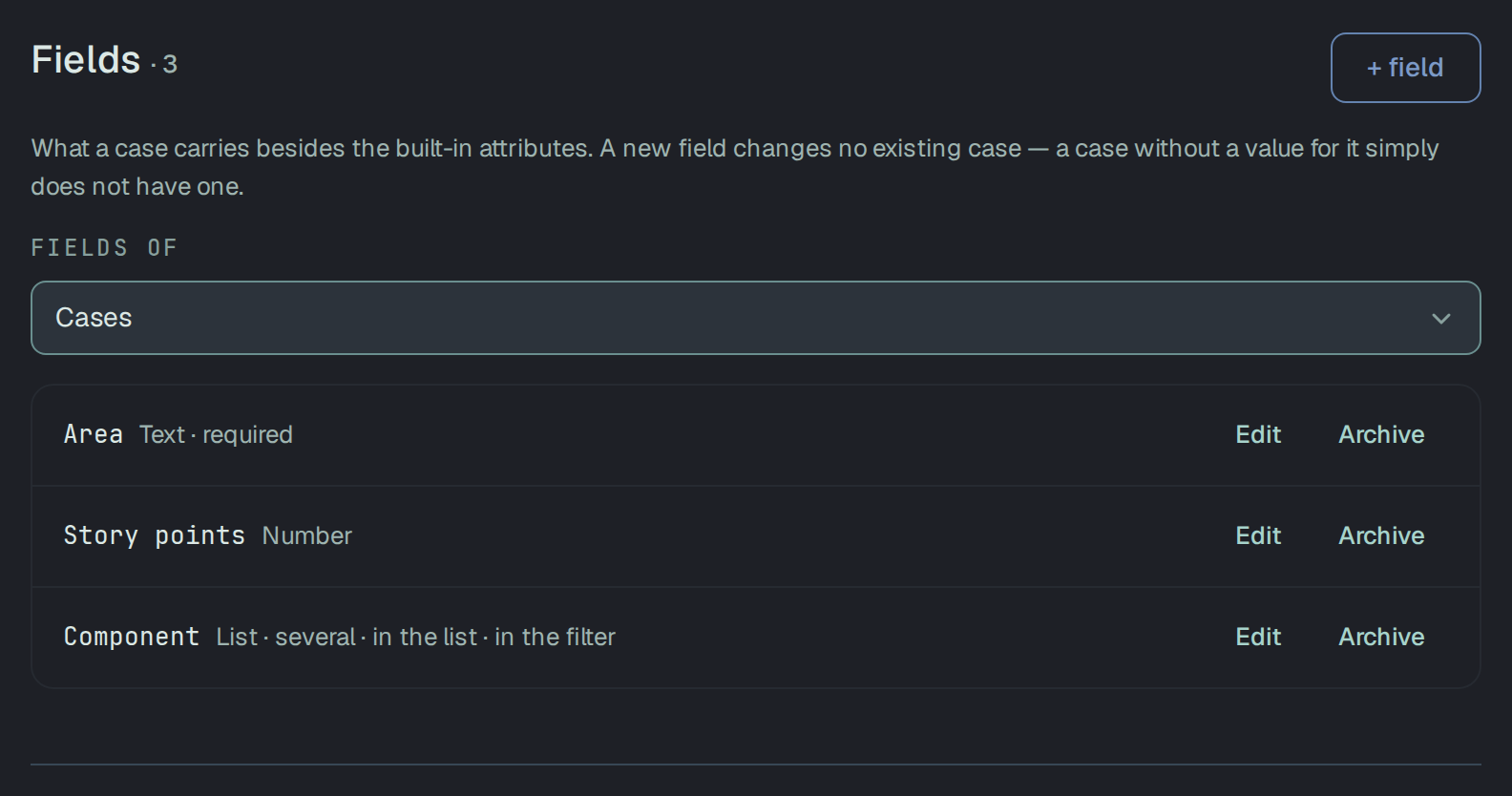
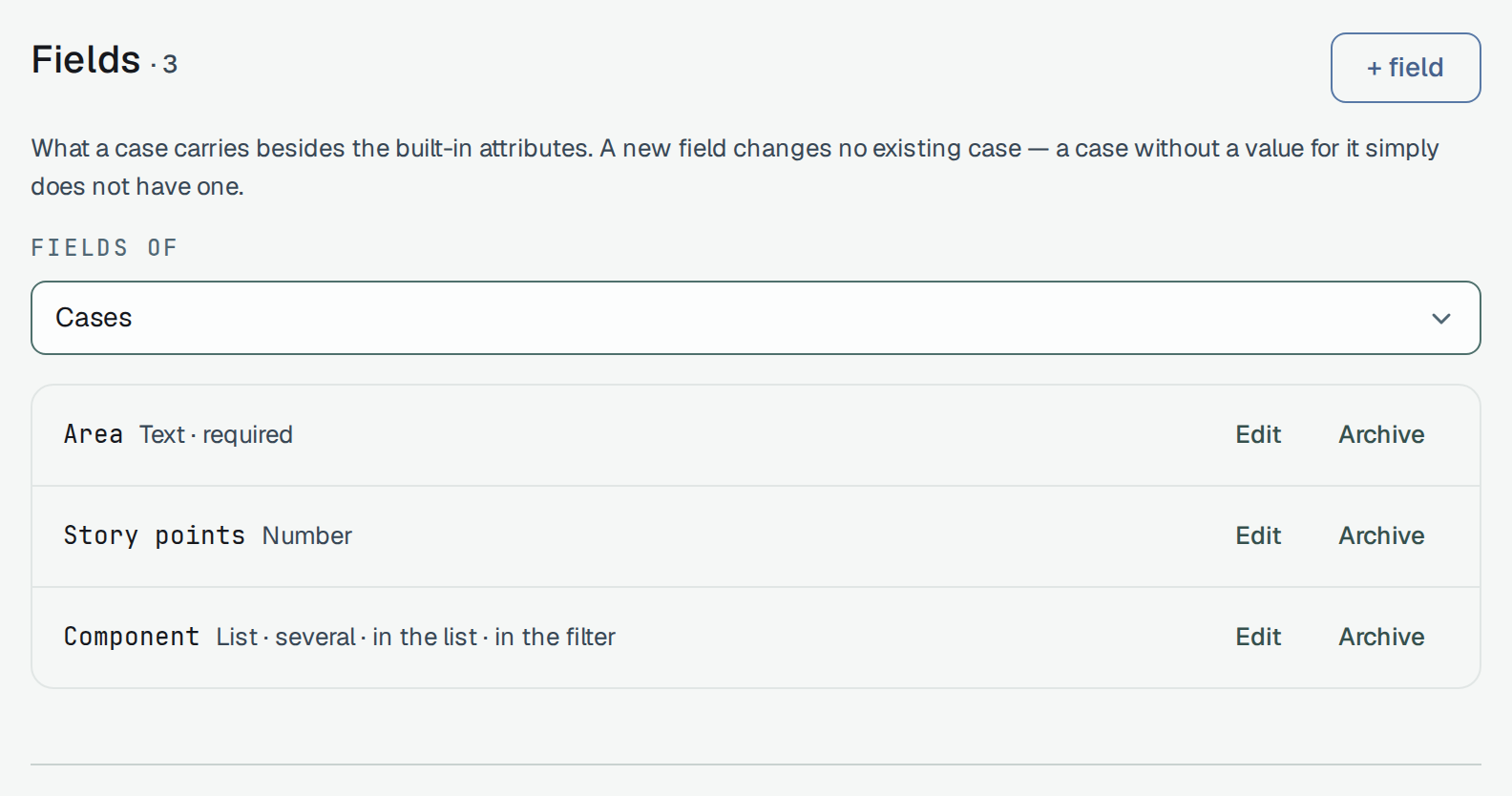
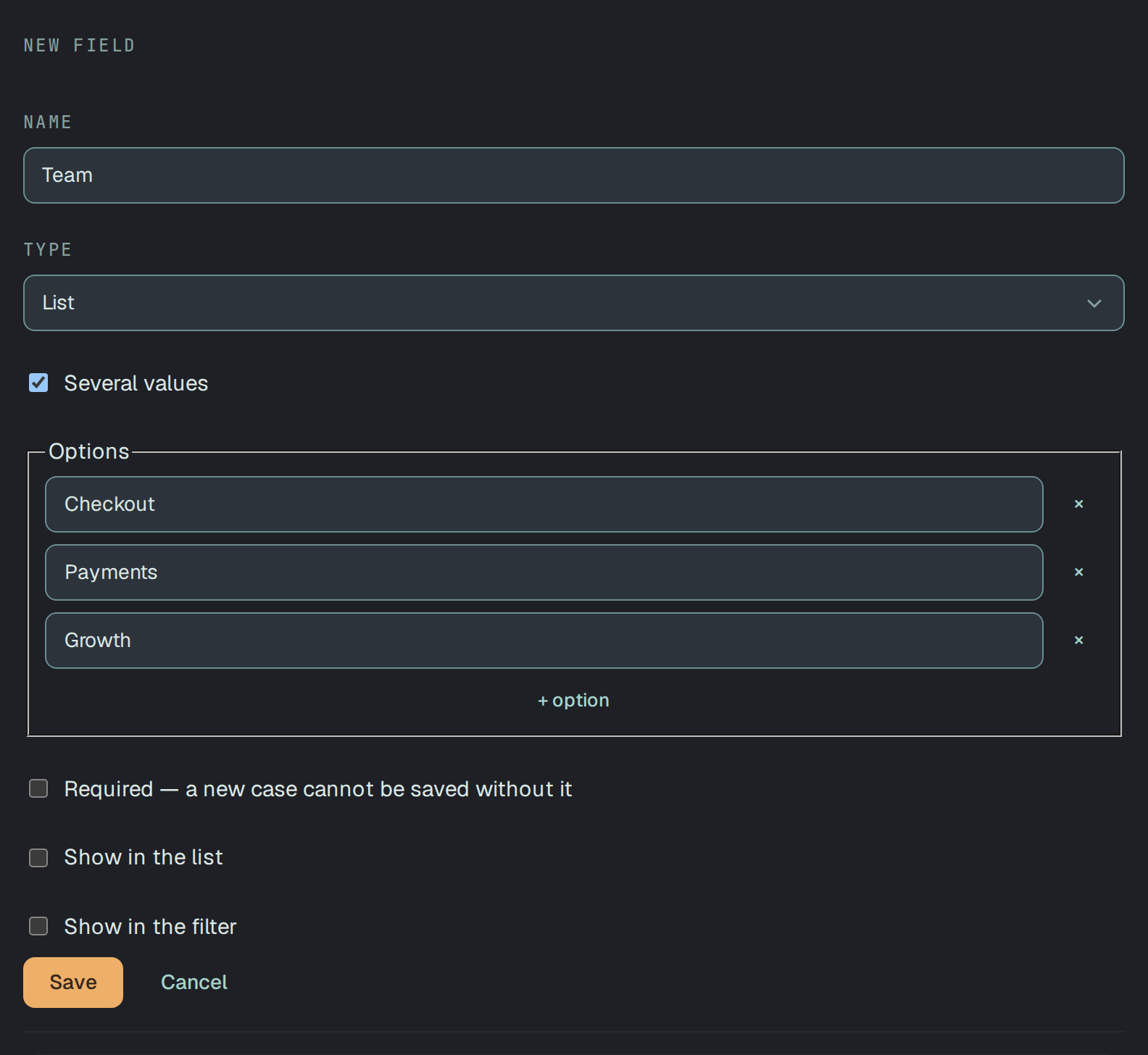
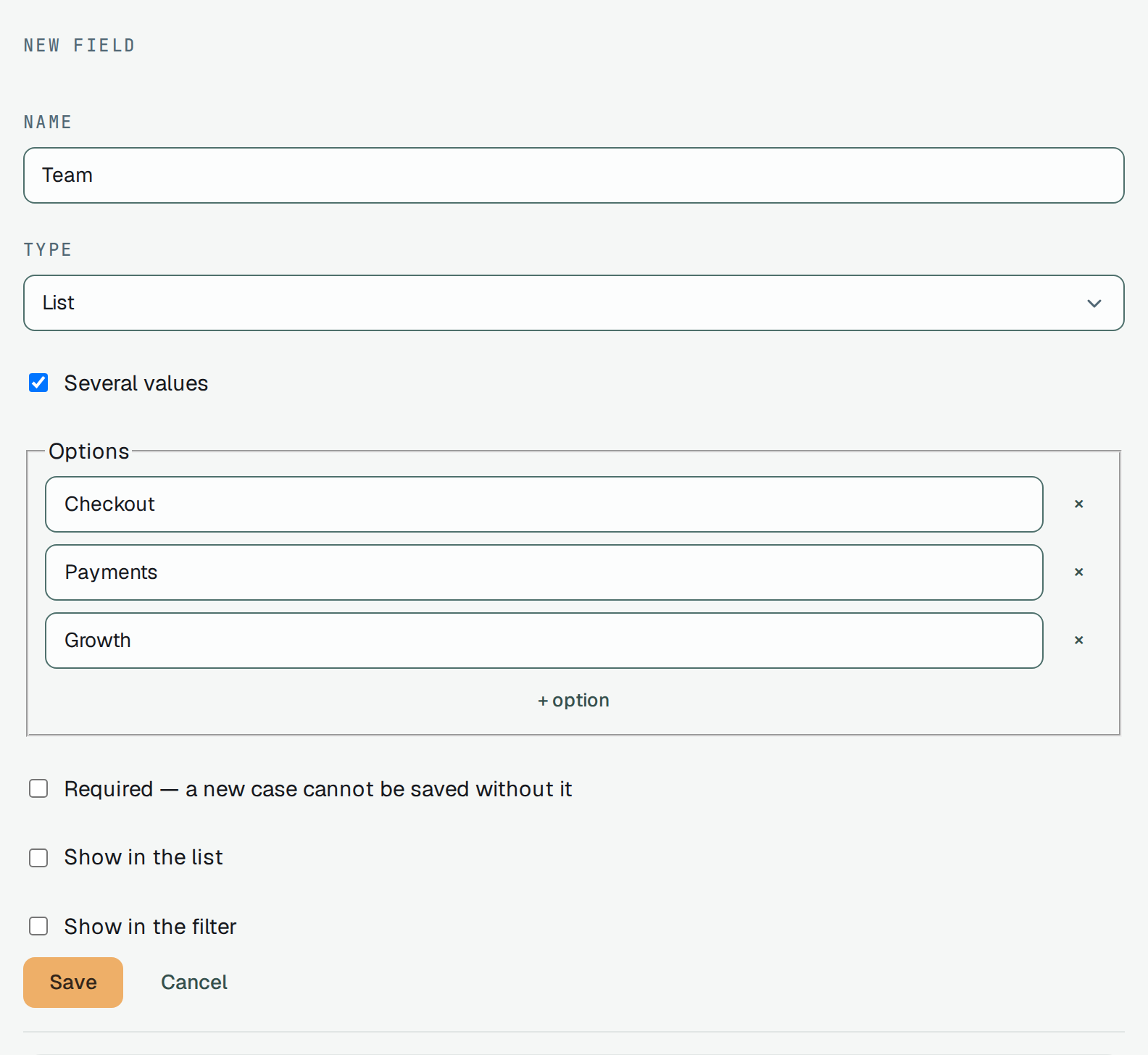
+ field opens New field:
-
Name — up to 100 characters, and no other field of the same kind may have it, an archived one included.
-
Type — one of three:
Type A value is Text a line of text, up to 1,000 characters Number a number List one of its Options — or, with Several values ticked, any of them -
Options, on a list: a box per option, + option adds one, × removes one. Up to 100 options of up to 200 characters each; two options with the same label, whatever their case, are refused.
-
Required — a new case cannot be saved without it. See A required field. A step field has no such box.
-
Show in the list and Show in the filter — two switches, each on its own: a field can be offered in the filter without being shown in the list, or the other way round. What each does is in Where the values are and Finding cases by a field.
Save creates the field; Cancel leaves the form.
Edit on a row opens Edit field: the name, the options, Required and the two switches can change. The type cannot, and the form says so — The type cannot change after the field is created. Several values is fixed too. Renaming an option keeps it the same option, so the cases that hold it keep their value under the new label. An option taken off the list stays on the cases that hold it, but it can no longer be picked as a new value.
Archive takes a field out of the forms. It is not a delete — there is none: the field moves under Archived — they keep their values and take no new ones, and Restore brings it back.
A configuration group is a field of a run, but it lives on its own screen, Settings → Configurations, and is not listed here — see Configurations.
A required field
Section titled “A required field”A required field is asked for when the thing is made:
- A case. The form says Area is required. under each empty required field and stops the save with Fill in the required fields: Area. — on a case being edited too, when it has no value yet.
- A suite or a folder. The dialog that makes one stops the same way.
- A run. The Manual run dialog (Starting one) says Fill in the required fields before starting: Area. and does not launch.
Through the API a required field is demanded only of a new case, suite, run or plan —
400 · custom field 'Area' is required. On one that already exists, the API only refuses to take the
value away: custom field 'Area' is required — its value cannot be cleared. So a field made required
later does not stop the cases made before it. A run a reporter starts for automated tests without
naming custom is not turned away either: it has no form to fill.
A step field cannot be required: steps are made from a case’s steps when the case is saved, where nothing could ask for a value.
Limits
Section titled “Limits”| What | At most |
|---|---|
| Live fields of one kind in a project | 50 — past it, 429: archive one you no longer use first |
| Options of a list | 100 |
| Values ticked on a Several values list | 50 |
| A text value | 1,000 characters |
| A field’s name · an option’s label | 100 · 200 characters |
| All the values of one case, suite, run, plan or step together | 16,384 bytes |
Where the values are
Section titled “Where the values are”| Of | Filled in | Changed later | Shown |
|---|---|---|---|
| Cases | the form of a new case | the case’s form | in the list of cases, for a field with Show in the list |
| Suites | the dialog of a new suite or folder | Fields in the ⋯ of the suite or folder in the tree | the same dialog, Fields of its name |
| Runs | the Manual run dialog | the run’s page, while the run is open or scheduled | the run’s page |
| Plans | the form of a new plan | the plan’s page | the plan’s page |
| Steps | — | Show fields on the step in Settings → Steps | the same place |
- In the list of cases a field with Show in the list that the case holds a value for is shown
beside the case as
Area: Checkout— a list by its option labels, several joined by,. - On a suite, a run, a plan or a step the values are a Fields block: a name and a value per
field,
—for none. Edit fields turns it into a control per live field — a box for text and numbers, a select for a list, a tick per option for Several values — with Save and Cancel. A refusal is shown in the server’s own words, such ascustom field 'Area' is archived and takes no new value. - An archived field still shows the value it holds, and takes no new one.
- A finished run keeps the values it was started with: the page offers no Edit fields, and the
API answers
409 · run '…' is closed. A configuration group shows on the run’s page too, read-only. - A step’s values belong to the step of the project’s Steps Database, not to one case.
- A copy of a case starts with the values of the original’s live fields. A value of an archived field, or an option taken off the list since, stays with the original.
Who may do what
Section titled “Who may do what”| Owner | Manager | Member | Reader | |
|---|---|---|---|---|
| See the fields and their values | yes | yes | yes | yes |
| Define, edit, archive and restore fields | yes | no — 403 · project owner only | no — 403 · project owner only | no — 403 |
| Fill in and change values | yes | yes | yes | no — 403 · read-only member |
A manager, a member or a reader sees Settings → Fields as a list, with Only the project owner defines fields. and no buttons. A reader opens a suite’s Fields dialog and the Fields blocks, with no Edit fields.
Finding cases by a field
Section titled “Finding cases by a field”Filters on the list of cases has, after its own sections, a section
for each live case field with Show in the filter, named after the field. A list is a pick of its
options; a text or a number field is one box, Value. A value applied is a chip — Area: Checkout.
In the page’s address and in GET /v1/test-cases the parameter is custom, a field’s id and the value
with a colon between them (%3A in a link):
GET /v1/test-cases?custom=<fieldId>:<value>-
The same value, nothing else. A text field matches the whole text as written, a number field the same number, a list field the option — by its id, not its label. There are no ranges and no part of a text: “more than 5” or “starts with Check” cannot be asked.
-
Repeat it for “any of”.
custom=<id>:<a>&custom=<id>:<b>is a case holding either value; two different fields, or a field and another parameter, are “all of”. -
The value is read by the field’s type. The filter does not look up the field: it tries the value as text, as an option’s id and, when it is a number, as a number, and only the reading that fits the field can match. A field id or a value nobody holds is not refused — it matches no case.
-
A pair without its colon is refused, with the form it expects:
400 · unknown custom "nocolon" — the forms of custom are <fieldId>:<value>The field id ends at the first colon, so a value may hold colons of its own.
A field’s id, and the ids of its options, are in GET /v1/custom-fields?entity=case.
The Runs list does the same for run fields with Show in the filter: a select for a list field,
a Value box for the others, and GET /v1/runs?custom=<fieldId>:<value> on the API.
In the XLSX export
Section titled “In the XLSX export”Export XLSX writes a column for each case field after the
built-in columns, headed Field: and the field’s name — Field: Area. A list’s value is its option
labels, several joined by , ; a number and a text are as written. An archived field gets its column
only while a case in the sheet still holds a value for it. The fields of suites, runs, plans and steps
are not in the sheet.
Imported back, the sheet leaves the Field: columns out: the values do not come back, and a field
named Priority is never read as the case’s priority.
The API
Section titled “The API”-
GET /v1/custom-fields— the project’s fields;?entity=case(orsuite,run,plan,step) narrows to one kind,?archived=trueadds the archived ones. Any member of the project reads it. -
POST /v1/custom-fields,PATCH /v1/custom-fields/{id},POST /v1/custom-fields/{id}/archiveand/restore, andPUT /v1/custom-fields/orderwith every live field of a kind in the order wanted — the owner’s alone, 60 a minute each:{ "entity": "case", "name": "Area", "type": "list", "options": [{ "label": "Checkout" }, { "label": "Search" }], "showInFilter": true }typeisstring(Text),numberorlist;multiple: trueis Several values. A field can also have adefaultValue, which a new case, suite, run, plan or step gets when it does not name the field — the API’s alone, Settings → Fields has no box for it.entity,typeandmultipleare refused on aPATCH:type cannot be changed after the field is created. A name already taken answers409. -
The values travel as
customon the thing itself —POSTandPATCHof/v1/test-cases,/v1/suites,/v1/runsand/v1/plans, andPATCH /v1/settings/steps/{id}— an object of field id → value: the text, the number, an option’s id, or a list of option ids for Several values.{ "custom": { "<field id>": "<option id>", "<another field id>": 3 } }In a
PATCHa field left out keeps its value andnulltakes it away. A value that does not fit its field is refused and named:custom field 'Area': 'x' is not one of its options,custom field 'Estimate' takes a number,unknown custom field '…'.
Every route, with its fields and answers: the API reference.