Navigation
The dashboard has two kinds of place. Outside every project stand the list of your projects, your companies, Analytics and your account. Inside a project live its runs, cases, plans and settings. The bar across the top is the same in both; what changes is its left end.
Outside a project
Section titled “Outside a project”Projects (/projects), Companies (/companies), Analytics (/analytics) and Account
(/account) belong to no project. The bar carries the Plune mark, which leads back to Projects, the
Projects, Companies and Analytics levels, and on the right search, the help menu and your
avatar.


Companies are the level above projects: the companies you are in, each with its projects and its people. Analytics counts over every project you are in at once, for a period.
The bare address, beta.plune.ai, opens your project straight away when you are in exactly one, and the Projects page when you are in more.
Inside a project
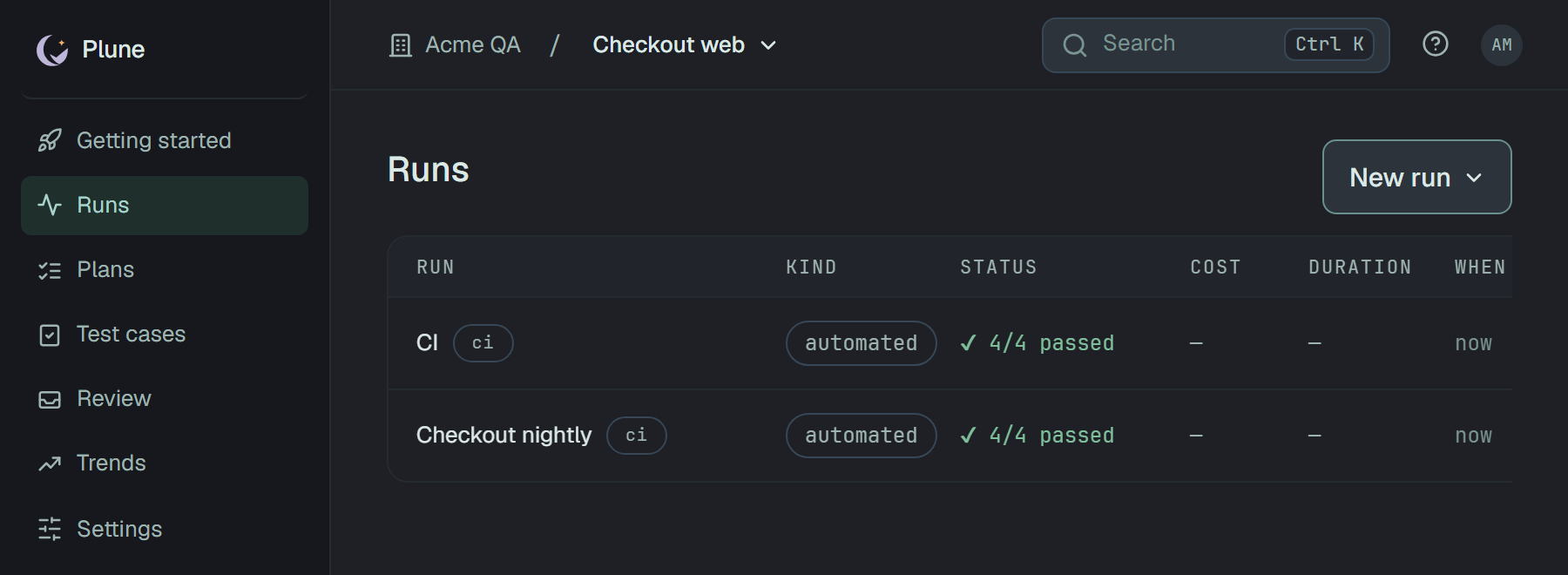
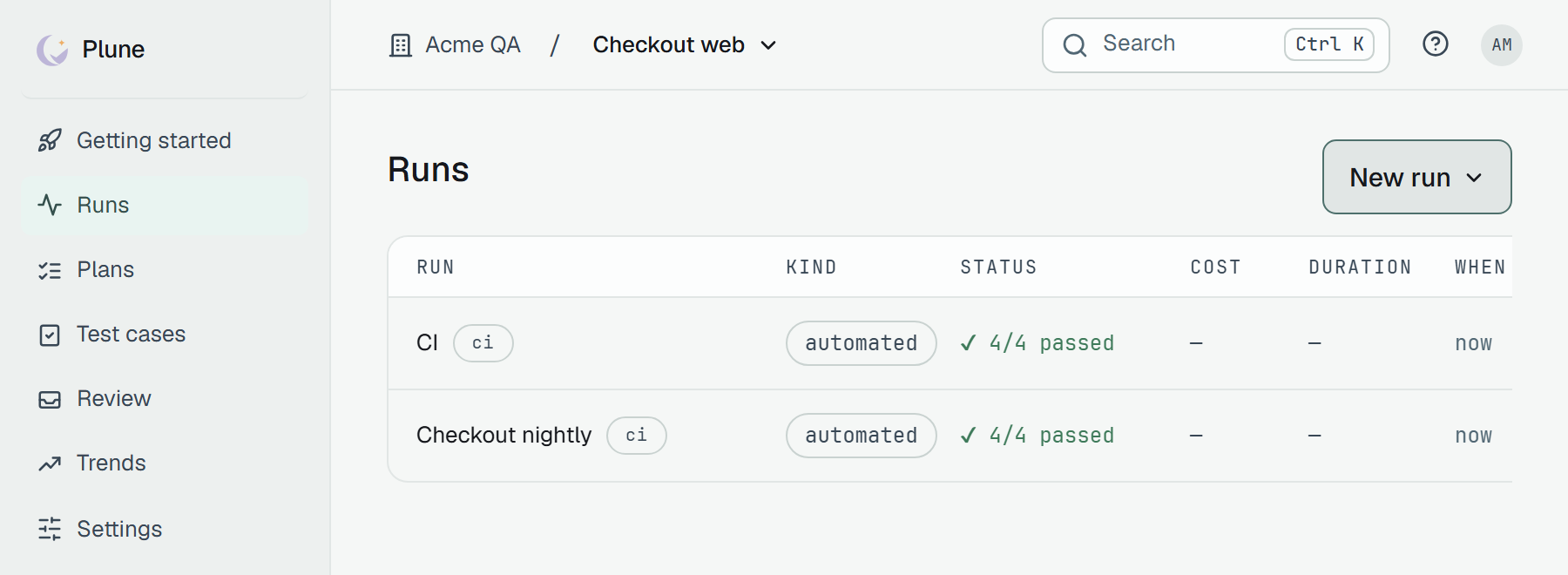
Section titled “Inside a project”The seven sections — Getting started, Runs, Plans, Test cases, Review, Trends and Settings — are the panel on the left, with the Plune mark on top (back to Projects) and Sign out at its foot. The bar names the project and the section you are in.
In a company’s project the company comes first: the building and its name — for the company’s people a link to its page, for somebody only in the project just words. Wider than 1024 px the bar holds all three:


Below 1024 px wide the section gives way to the company, and the panel on the left names it:
In a personal project nothing stands before the project’s name, and the section stays at every width.
Switch projects
Section titled “Switch projects”-
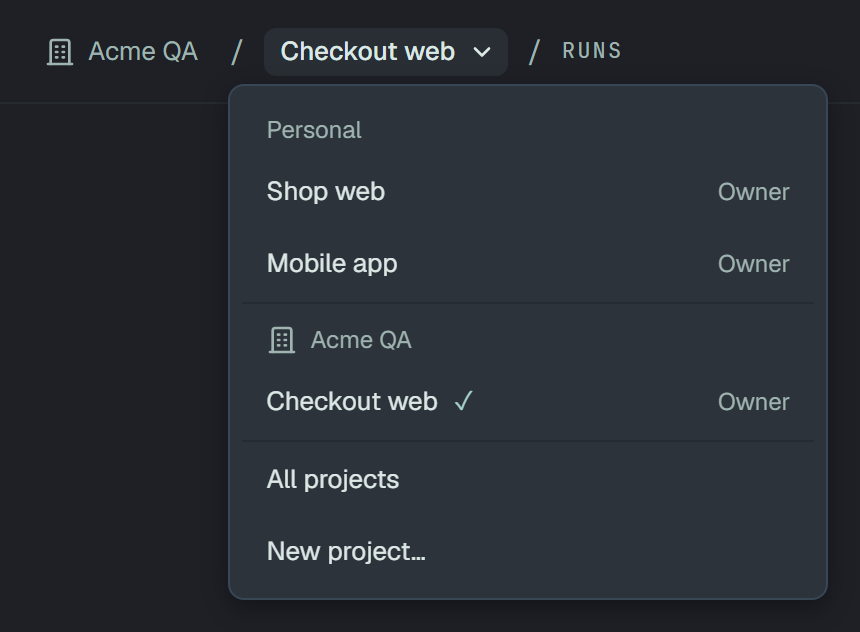
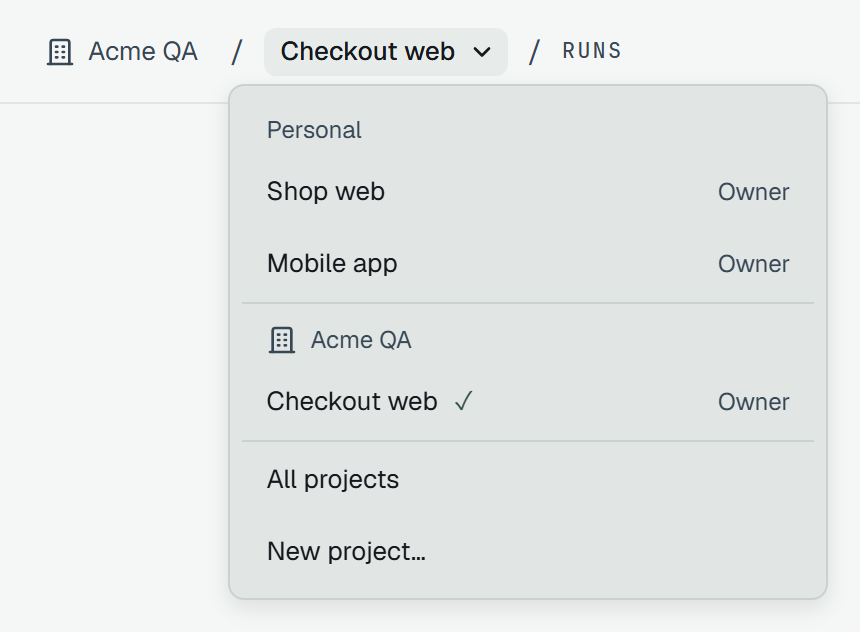
Click the project’s name at the left of the bar. Every project you are in opens as a list — the current one checked, your role in each on the right. When one of them is a company’s, the list is grouped as Projects is: Personal first, then each company under its name.
-
Pick one. Its runs list opens, and the browser remembers the choice for your next visit.
Under the line, All projects is the Projects page, and New project… makes one — a name, and you are its owner.
Search
Section titled “Search”Ctrl K (⌘K on a Mac) opens search on any page; so does Search in the bar.
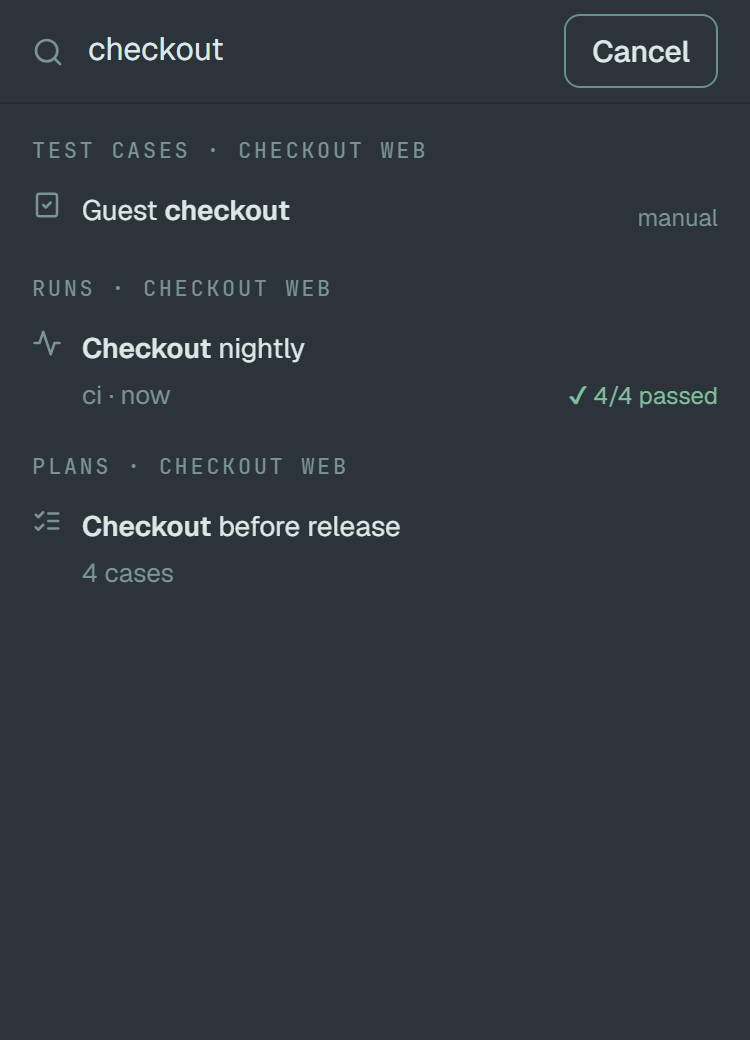
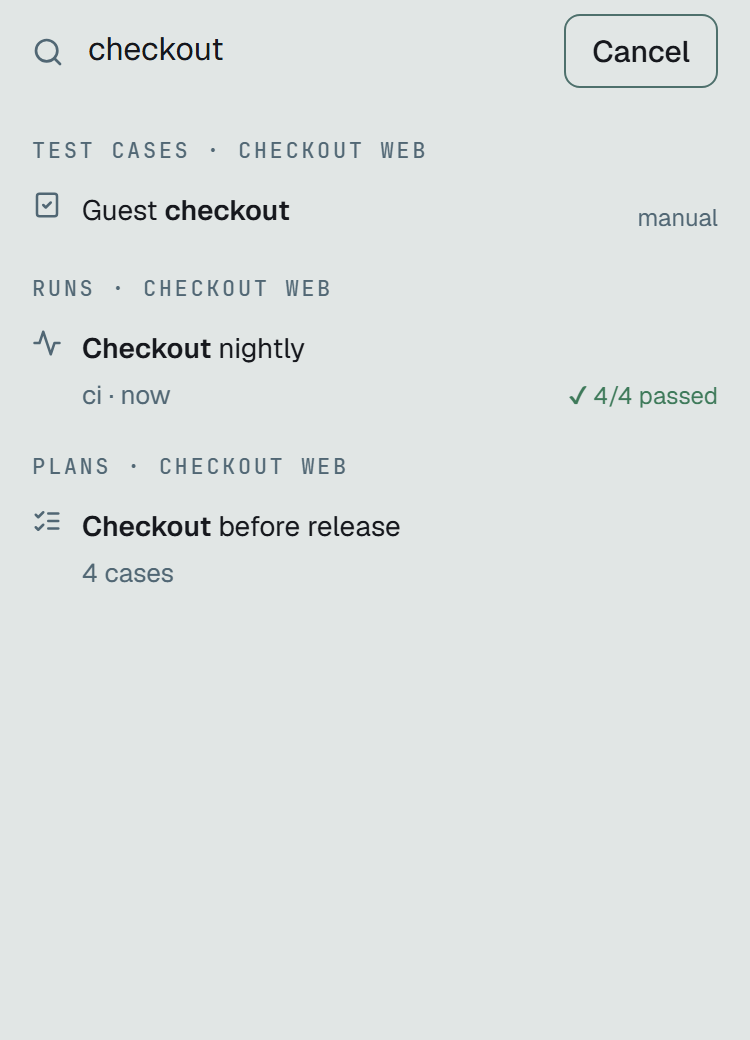
Inside a project, search looks through the project’s test cases, runs and plans as you type — up to five of each, the letters you typed in bold — and, under them, the names of your projects that hold the same letters. A test case matches on its name and its description; a run or a plan on its name.
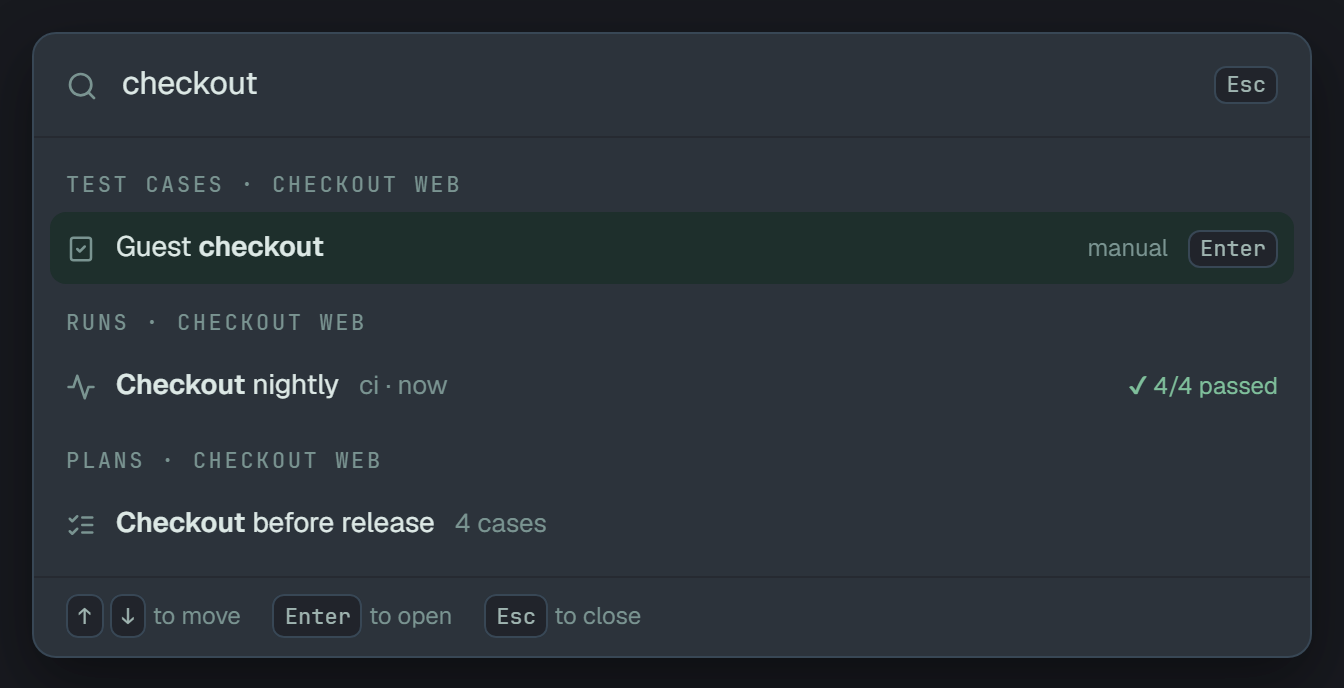
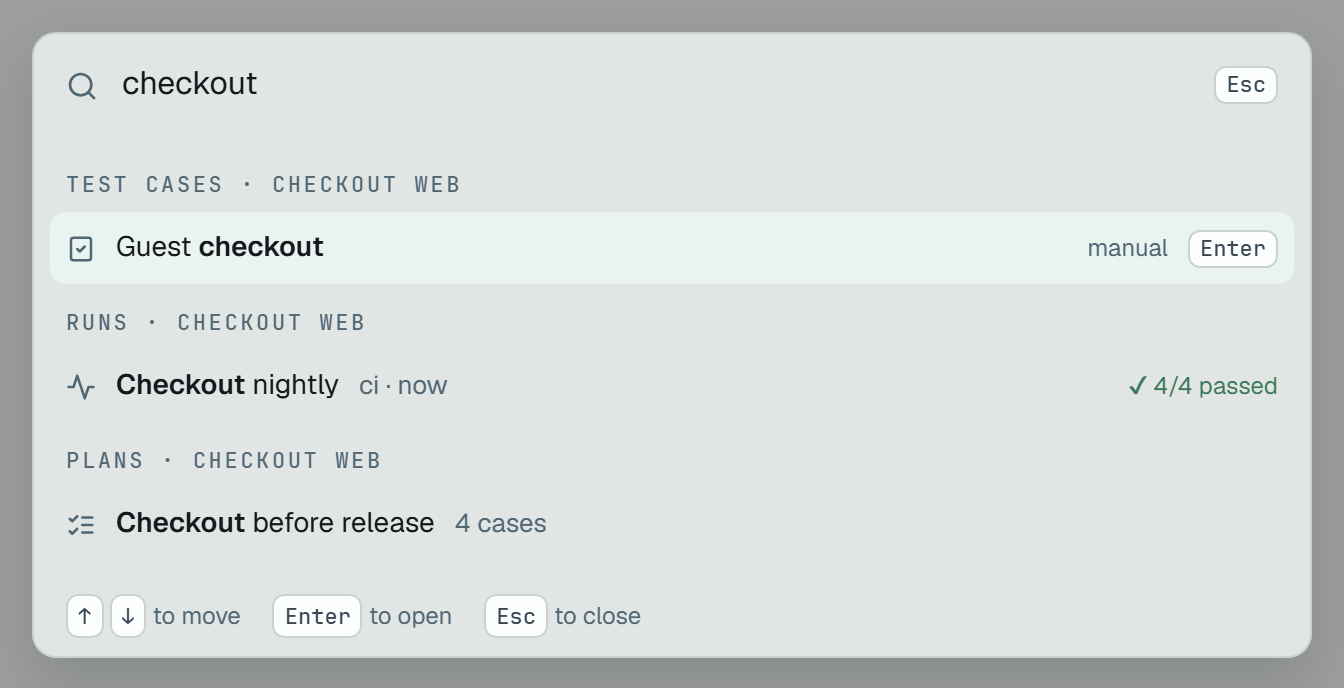
- ↑ ↓ move the pick across the groups, Enter opens it and Esc closes search. A click opens a result too.
- See all under a group opens that list narrowed by the same letters — the test cases, or the runs or plans whose name holds them. The list says what narrowed it and links back to all of them.
Outside a project, search finds your projects: every one of them until you type, the matching ones as you do.
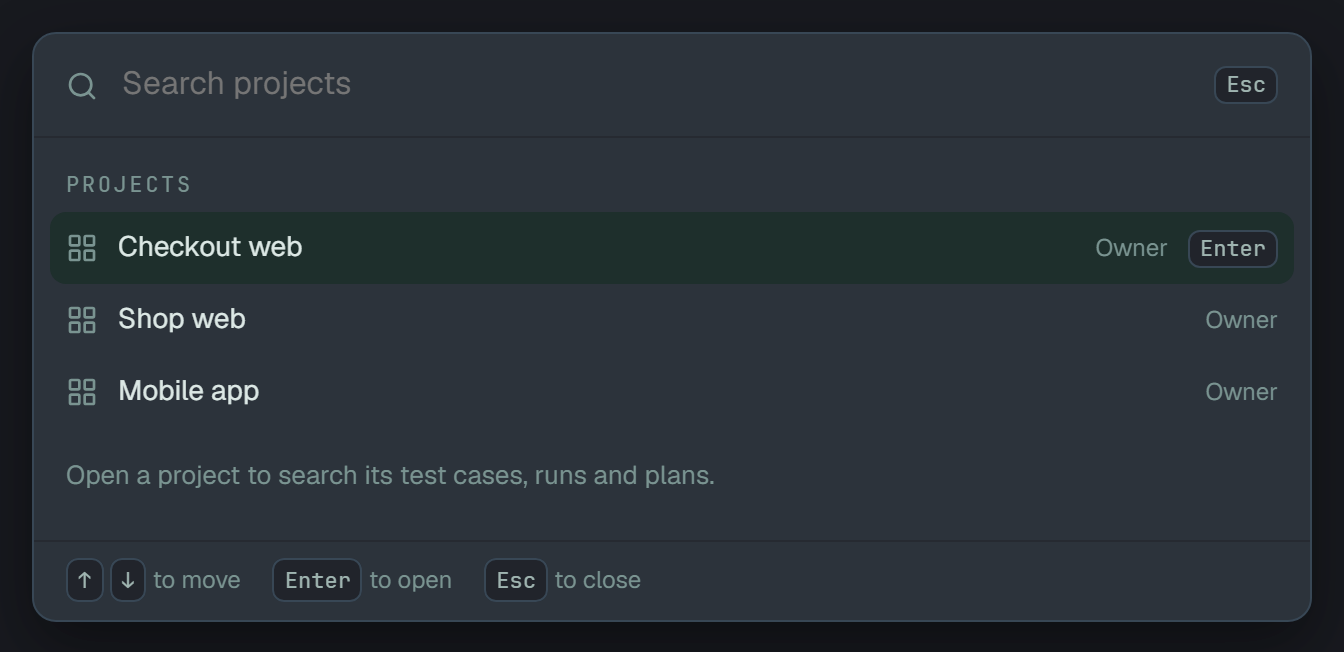
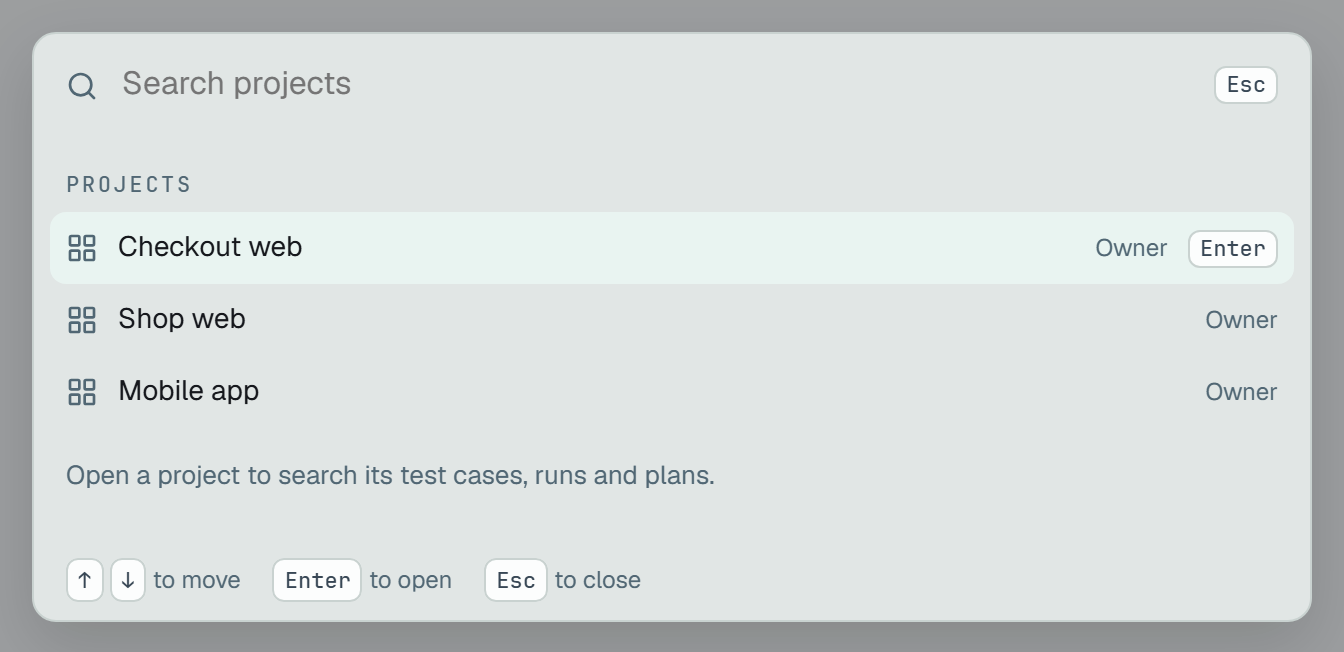
Search sees only what you could open yourself: the projects you are a member of, and inside them what their pages show you.
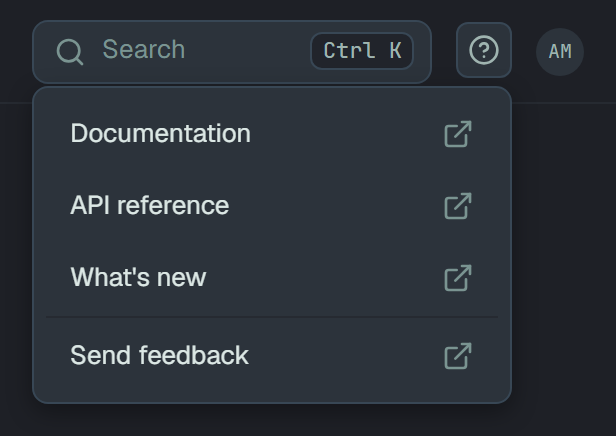
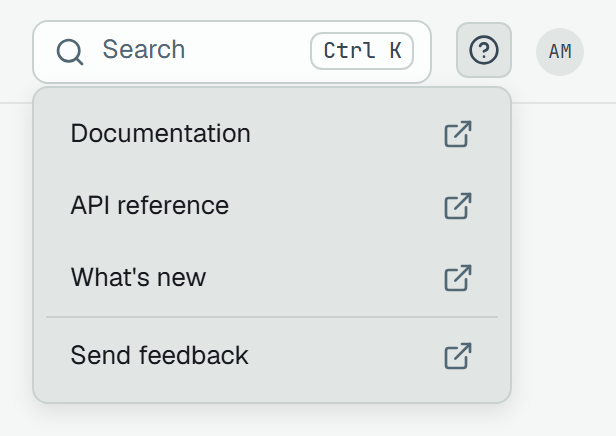
The ? on the right opens four links, each in a new tab:
| Item | Opens |
|---|---|
| Documentation | these pages |
| API reference | every endpoint, with examples |
| What’s new | the changelog |
| Send feedback | a form on GitHub — a question, an idea, something broken |
Your account
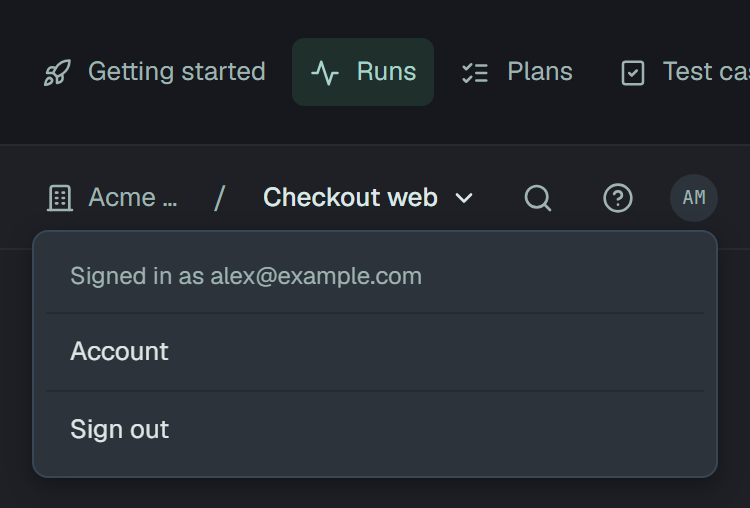
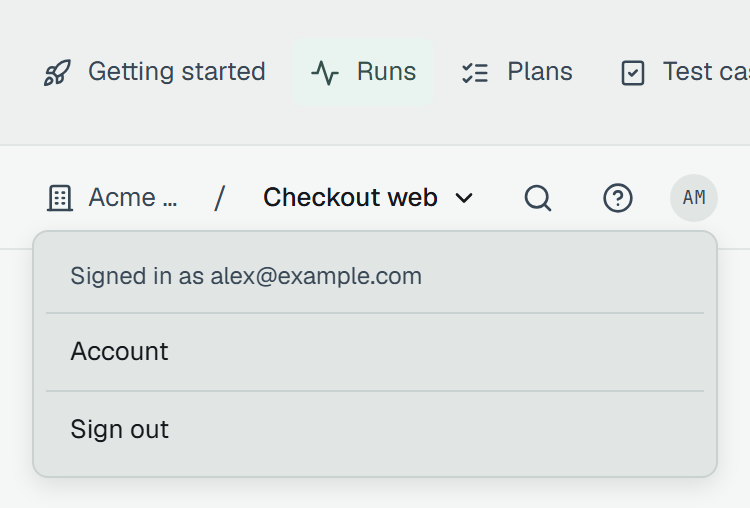
Section titled “Your account”The avatar shows your initials — from your name, or from your address until you give one. It opens a menu: who is signed in, Account and Sign out.
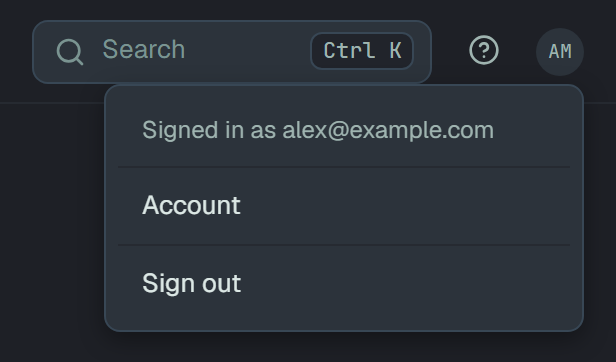
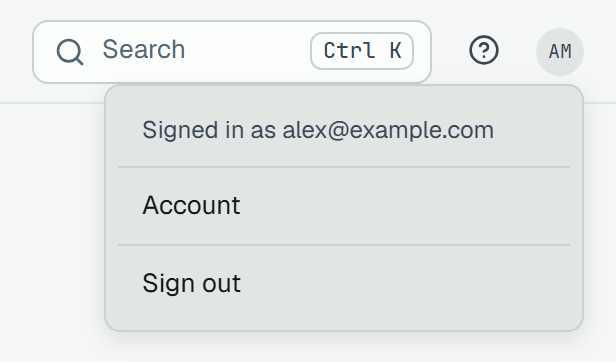
Account holds your name, your sign-in address, your language and theme, and your API tokens — see Account.
On a phone
Section titled “On a phone”Below 480 px wide the panel of sections becomes a row across the top that scrolls sideways, with the bar under it. The bar stays on one line: a name longer than the room ends in «…» — a company’s before its project’s — and the switcher’s list shows the project’s whole. The switcher, help and account menus open under their buttons, across the width of the screen.
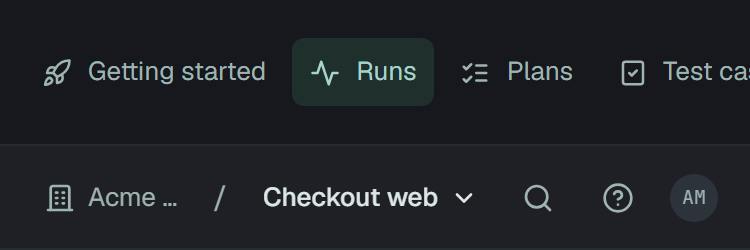
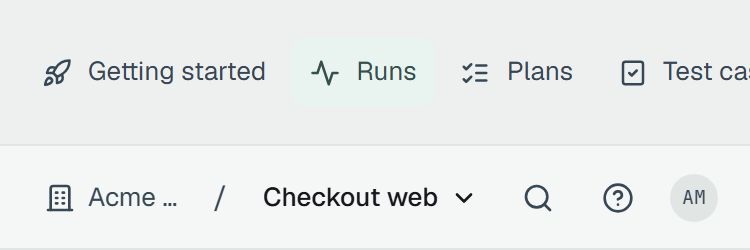
On a phone, Search in the bar is an icon, and search takes the whole screen, with Cancel to close it. A tap opens a result.